 Store Leads
FullEnrich Integration
Contents
Overview
FullEnrich is a personal data vendor that helps you find contact information for people working at stores in our database. FullEnrich uses waterfall enrichment across several other vendors in order to maximum coverage. As a result, it's a bit slower for interactive use but that's a worthwhile trade-off for increased coverage.
The Store Leads database does not include any personal information, so customers often use other data vendors to find contact information for the stores in our database. The FullEnrich integration makes it easier to access FullEnrich contact data when using Store Leads.
Configuration
Enabling the FullEnrich Integration
-
To enable the FullEnrich integration, visit the Integrations page in the Dashboard and click on "FullEnrich".
 FullEnrich Integration Summary.
 -
Create a FullEnrich account, if you haven't already done so.
-
Open the FullEnrich API Dashboard page and generate an API key. Paste the FullEnrich API key into our FullEnrich integration page and click the Enable button.
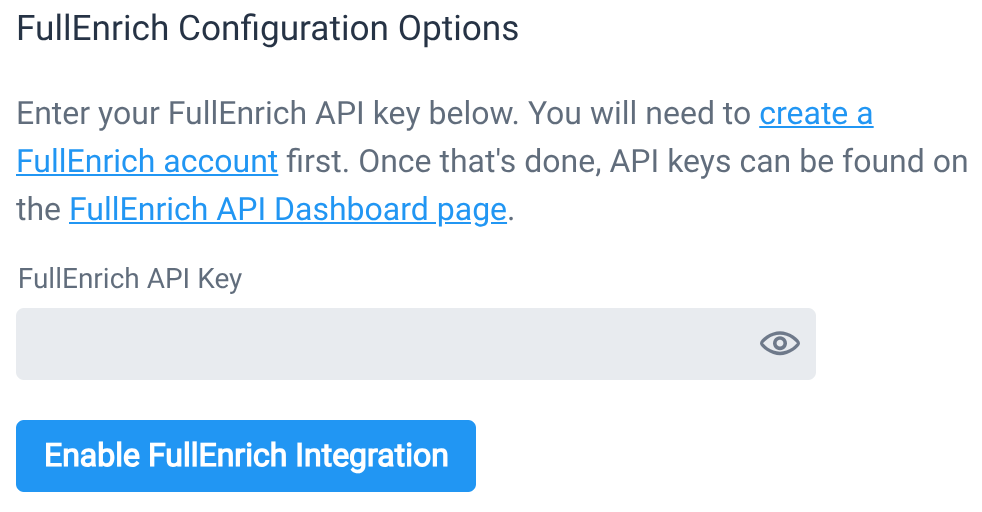 Enable FullEnrich Integration.
 -
At this point, the integration is enabled.
Disabling the FullEnrich Integration
If you wish to deactivate the integration, simply click the disable button.

Managing Personas
Personas are used to filter contacts based on their job title. Create separate personas for each type of contact that you want to reach. Personas can be used to automatically create CRM records from FullEnrich data during weekly workflows.
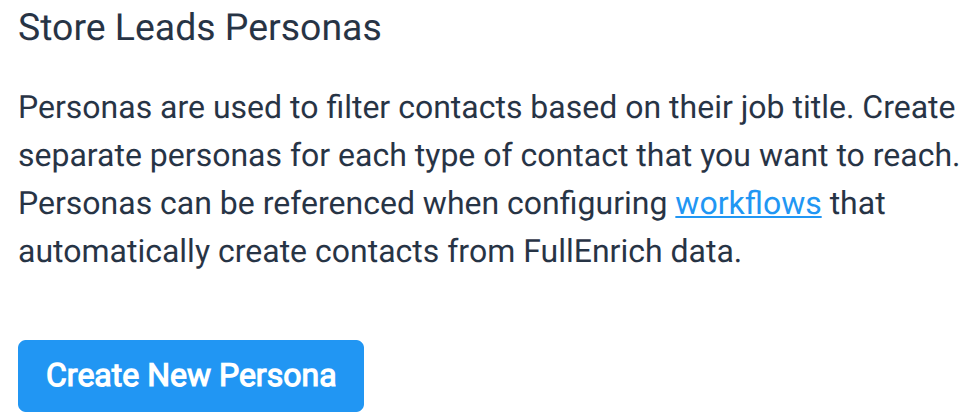
Click the "Create New Persona" button to get started.
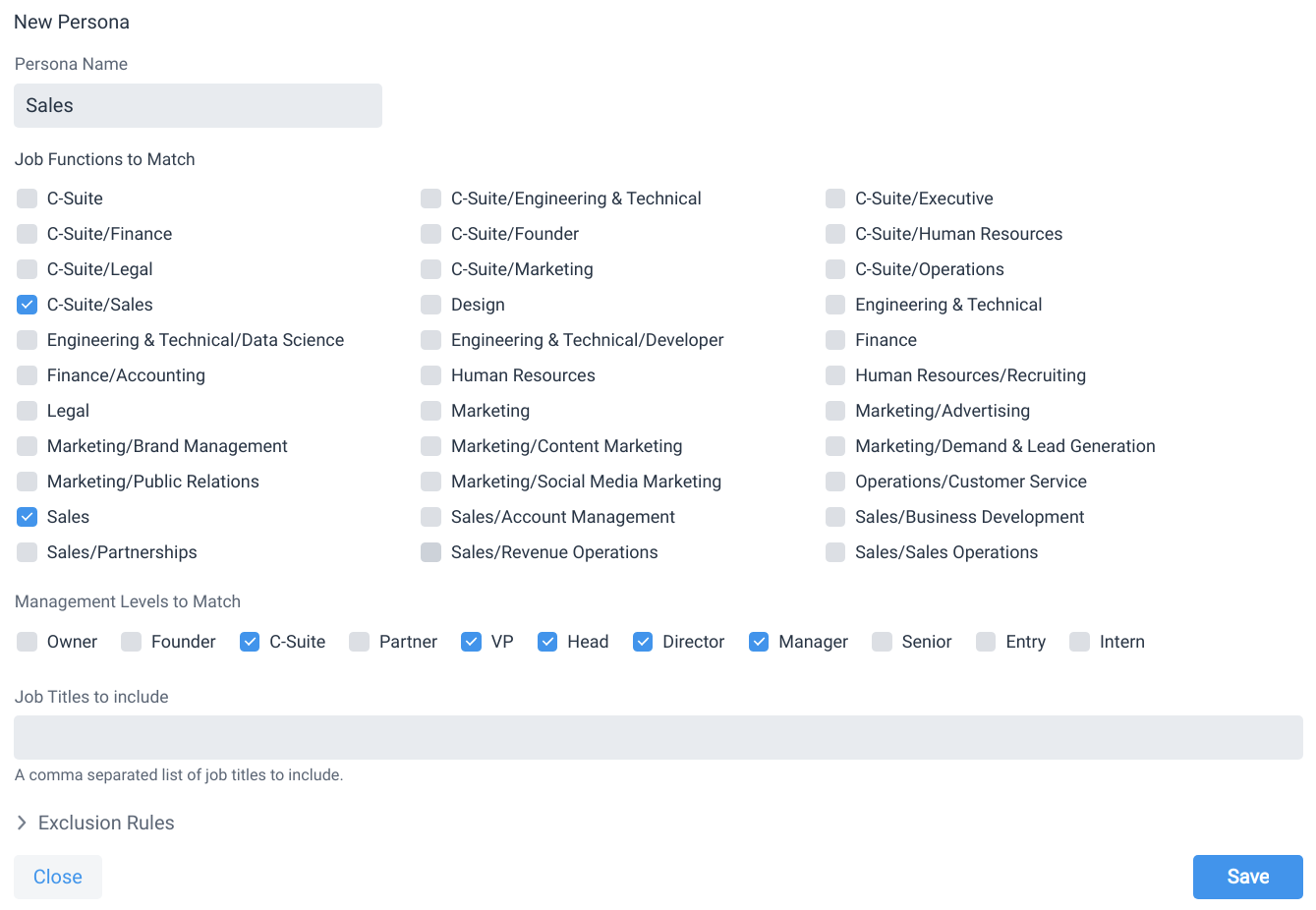
To configure a persona, provide the following information:
- Name: Each persona needs a unique name.
- Job Functions: A list of job functions to match. Contacts are automatically mapped to job functions based on their job titles. Do not check any values to match contacts in any job function.
- Management Levels: A list of management levels to match. Contacts are automatically mapped to management levels based on their job titles. Do not check any values to match contats at any management level.
- Job Titles: A comma-separated list of job titles to match. Use this to match on specific job titles (e.g., chief troublemaker) rather than our predefined job functions.
In order to match the persona, a contact's job function must match any of the checked values (if any are checked) AND a contact's management level must match any of the checked values (if any are checked) AND a contact's job title must match any of the job titles (if any are provided).
Expand the Exclusion Rules section to configure a list of job functions, management levels and job titles to filter out from the persona.
Click the Save button to save the new persona.
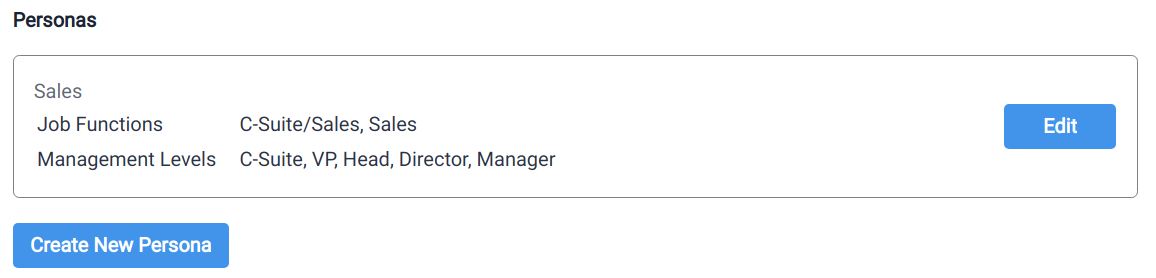
Click the Edit button next to the persona to modify or delete it.
FullEnrich Contact Management
The FullEnrich integration allows you to see a list of people working at each store (assuming FullEnrich has data for that store).
Viewing People Working At a Store
With the FullEnrich integration enabled, a new "FullEnrich" tab is available on the store detail page. Click on this tab to see the list of people working at each store. Data is retrieved from FullEnrich in real-time.
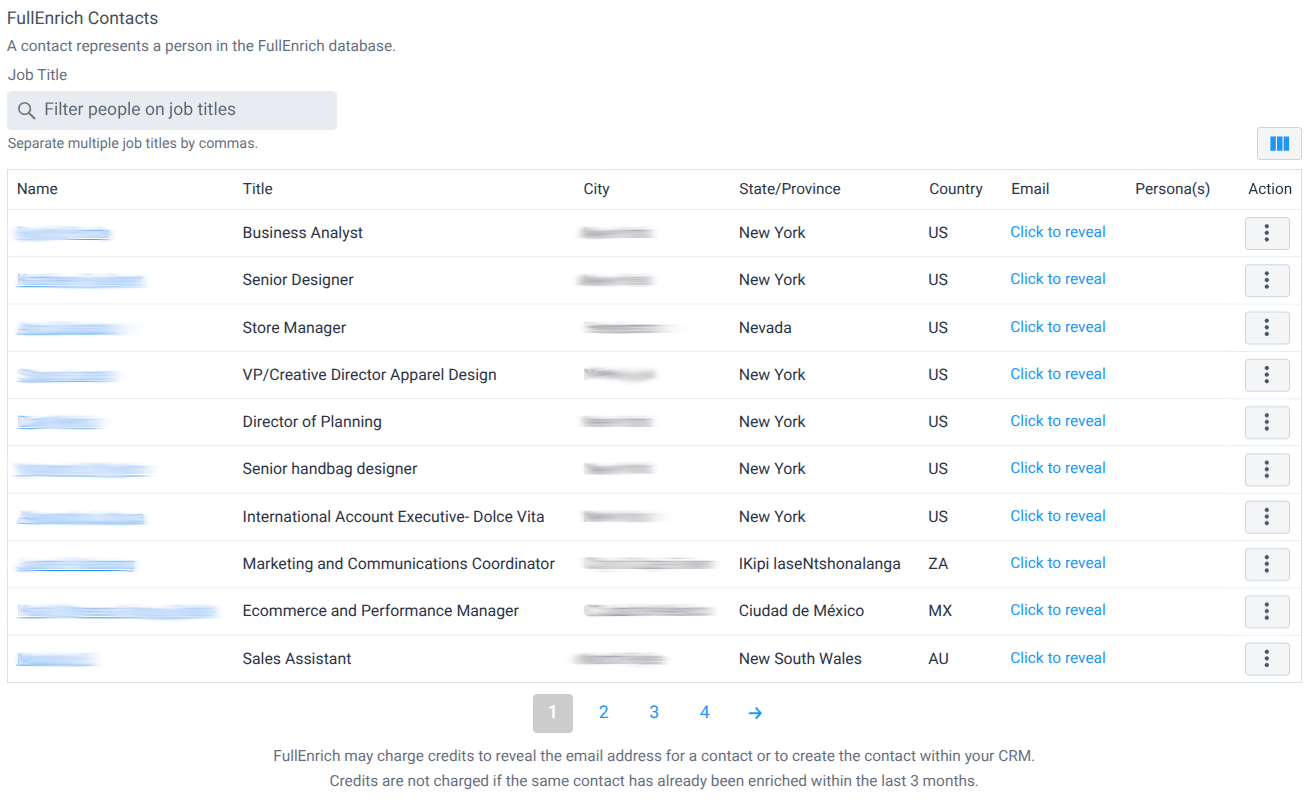
To see the email address for a contact, click the "Reveal" link in the Email column to start an "enrichment" through FullEnrich. FullEnrich charges 1 credit for work emails and 3 credits for personal emails. FullEnrich queries several other vendors, one by one, until it finds an email address (or phone number if desired). This process can take a while, but it maximizes coverage. FullEnrich does not charge a credit if it is not able to find an email or phone for a contact. FullEnrich does not charge another credit if you have already enriched the same person within the last 3 months.
Similarly, phone numbers can be retrieved by clicking the "Reveal" link in the Phone column. FullEnrich charges 10 credits for each successfully retrieved phone number.
Customizing Columns
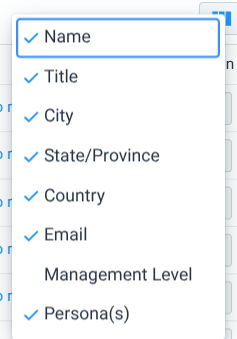
To customize the columns displayed for each person, click on the Column icon on top right corner of the person list.

This will reveal a menu that lets you choose which columns to display for each person.
Viewing Previously Enriched Contcts
Since FullEnrich uses waterfall enrichment, which can take a while to complete, sometimes you may want to navigate to another page while enrichment is ongoing. To find contacts that were previously enriched, you can either:
- Open the same domain within the Store Leads dashboard. We'll show all the contacts working at that store that were previously enriched through FullEnrich.
- To see previously enriched contacts across all stores, open the FullEnrich integration page, and click on the Enrichments tab.
Note that we can only show previously enriched contacts if you still have a functioning FullEnrich API key (which requires an active FullEnrich subscription) and the FullEnrich retention period has not expired (3 months after the contact was originally enriched).
CRM Contact Management
With the FullEnrich integration enabled, you can manually create contacts in your CRM (e.g., Salesforce) from FullEnrich data This feature can only be used if you have a CRM integration enabled. In the examples below, we show the CRM tab for HubSpot but the same features work for any of our CRM integrations.
Manually Creating CRM Contacts From FullEnrich
Start by ensuring that manual creation of HubSpot contacts is enabled (or, if you are using Salesforce, enable manual creation of Salesforce contacts or Salesforce leads.
Now view the details for a domain and click on the HubSpot tab. You will see contact data from FullEnrich for people working at the store that you're looking at (if any).
You can filter contacts by job title and click on the person's name to visit their LinkedIn page. Viewing the list of contacts that work at a company is free through the FullEnrich API.
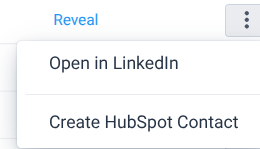
To create a HubSpot contact, click on the Action menu for the person and select "Create HubSpot Contact". When creating a contact in a CRM, the person's email address is fetched from FullEnrich which may trigger consumption of FullEnrich credits (see above).
Automatically Creating CRM Contacts From FullEnrich
With the FullEnrich integration enabled, a workflow can be configured to automatically create CRM contacts from data retrieved through the FullEnrich API.